+91 95752 60218


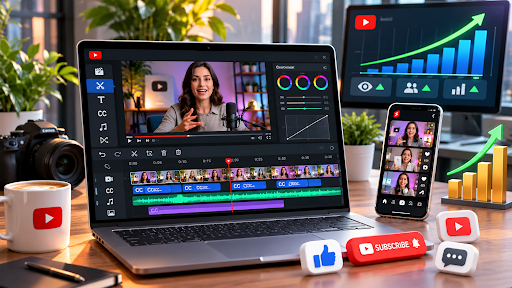
YouTube is a useful platform for businesses looking to reach new customers, explain their services, and build brand awareness. However, recording a video is only the beginning. How you edit your content affects whether viewers stay interested or move on.
Clear audio, readable captions, smooth transitions, and well-organized scenes can make videos easier to follow. Good editing also helps businesses create professional content for marketing campaigns, product demonstrations, and educational videos.
AI editing tools now make it easier to organize footage, remove unwanted sections, and prepare videos for publishing.
This guide covers practical YouTube editing techniques, useful tools, and tips for improving engagement and business growth.
Why YouTube Video Editing Matters for Businesses
YouTube videos can help businesses answer customer questions, demonstrate products, and explain their services.
Editing improves how this information is presented.
Some benefits include:
- Better viewer retention: Removing unnecessary pauses keeps videos moving naturally.
- Clear communication: Captions and graphics help explain important information.
- Improved audio: Balanced sound makes dialogue easier to understand.
- Consistent branding: Similar colors, fonts, and editing styles make videos recognizable.
- More marketing content: Long videos can become Shorts, highlights, and promotional clips.
These practices also support a wider social media marketing strategy by helping businesses share content across different platforms.
How to Edit YouTube Videos for Better Engagement
1. Start With a Strong Opening
The first few seconds should introduce the video’s main purpose.
Start with a useful question, an interesting fact, or a quick preview of what viewers will learn.
For business videos, focus on a customer problem and explain how the video will address it.
2. Remove Unnecessary Footage
Long pauses, repeated explanations, and unrelated scenes can interrupt the viewing experience.
Trim these sections while keeping the message clear.
Maintain a natural pace so viewers have enough time to understand important information.
3. Add Captions and Text Overlays
Captions help people follow videos when watching without sound.
Use short text overlays to highlight product features, key facts, or important steps.
Choose readable fonts and avoid overcrowding the screen.
4. Improve Audio and Visual Quality
Reduce background noise, balance voice levels, and keep music from overpowering speech.
Adjust colors, lighting, and framing to maintain a consistent appearance throughout the video.
5. Include Relevant B-Roll
B-roll adds visual variety while supporting your main message.
Businesses can include product demonstrations, screen recordings, customer experiences, and behind-the-scenes footage.
Use simple transitions that do not distract from the content.
6. Create YouTube Shorts
Long videos often contain useful moments that can become short clips.
Select interesting tips, product highlights, or answers to common questions. Reframe them vertically and add captions for YouTube Shorts.
3 Useful Tools for Editing YouTube Videos
Different video editors support different workflows. Here are three options for businesses and content creators.
1. Invideo
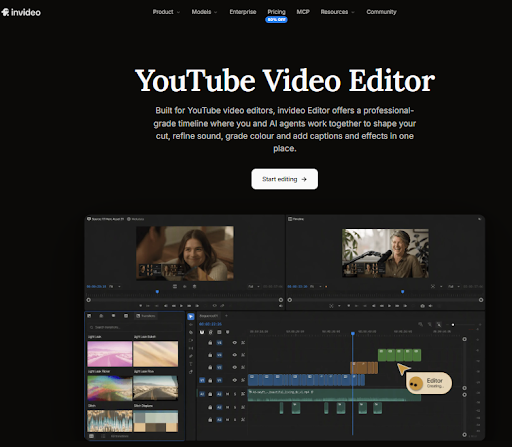
Invideo Editor is a browser-based video editing platform that combines a professional multitrack timeline with AI agents. It helps creators organize footage, prepare rough cuts, improve audio, and refine YouTube videos while keeping control over the final edit.
With invideo’s YouTube Video Editor, users can upload videos, B-roll, photos, music, voiceovers, and graphics. They can arrange clips on the timeline, trim footage manually, or remove sentences directly from a transcript.
The editor also supports cropping, resizing with safe-zone presets, speed adjustments, stabilization, automatic captions, music, AI voiceovers, and background replacement without a green screen.
Invideo’s AI agents can analyze footage by dialogue, actors, props, and camera angles. They can identify useful takes, remove filler words and silences, and assemble a rough cut on the timeline.
Creators can also ask AI to match cuts to music beats or follow the pacing, structure, and style of a reference video. External AI assistants can connect to the editor to make changes directly on the timeline.
For detailed editing, invideo offers keyframe controls for position, rotation, zoom, opacity, and effects. It also includes transition libraries, color grading with wheels, curves, LUTs, and scopes, plus multitrack audio mixing with loudness controls.
Teams can work on the same project in real time, share review links, and leave frame-accurate comments. Projects stay synced across computers, tablets, and phones.
Creators can turn long videos into vertical Shorts, add YouTube chapter markers, and export MP4 videos from 720p to 4K. Frame-rate options include 24, 30, and 60 fps, with bitrate controls. Audio-only exports support WAV, AAC, and Opus.
Projects can also move to Premiere Pro, Final Cut Pro, or DaVinci Resolve with cuts and layers intact. The landing page advertises free 1080p exports without a watermark.
Key features:
- Multitrack editing with manual and AI controls.
- AI footage logging, rough cuts, beat matching, and reference-based editing.
- Transcript trimming, automatic captions, stabilization, and background replacement.
- Keyframes, transitions, color grading, and audio mixing.
- External AI assistant connections and real-time collaboration.
- YouTube Shorts, chapter markers, and exports up to 4K.
Best for: YouTube creators, businesses, and marketing teams wanting AI-assisted editing with professional controls.
2. Descript
Descript is an AI-powered video and audio editi
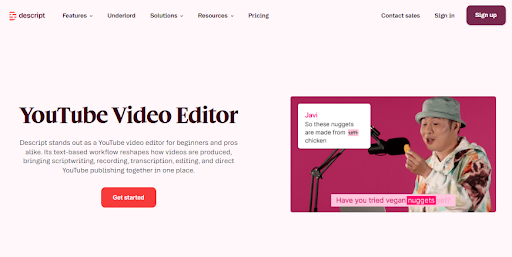
ng platform that allows creators to edit recordings through written transcripts. It is particularly useful for YouTube tutorials, interviews, product explainers, and educational videos.
After uploading footage, Descript generates a transcript. Users can delete unwanted sentences from the text, and the corresponding sections are removed from the recording.
This approach makes it easier to cut mistakes, repeated explanations, and unnecessary pauses.
Descript also offers AI tools for removing filler words, improving voice clarity, and preparing rough edits. Its Studio Sound feature helps reduce unwanted background noise.
The platform supports automatic captions, screen recording, video layouts, and visual elements. Creators can combine text, images, and footage to prepare instructional or promotional videos.
Descript also provides tools for creating short clips, generating YouTube descriptions, and preparing supporting content from longer recordings.
Teams can collaborate through shared projects and comments, making it useful for regular content production.
Key features:
- Transcript-based video editing.
- AI filler-word removal and editing assistance.
- Studio Sound for audio improvement.
- Automatic captions and subtitles.
- Screen recording and video layouts.
- Short clip creation and YouTube publishing tools.
Best for: Educators, interviewers, business presenters, and creators producing speech-focused videos.
3. CapCut
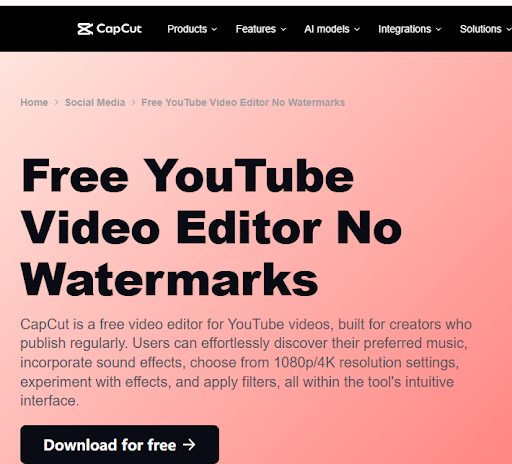
CapCut is a video editing platform available through web, desktop, and mobile applications. It combines manual editing features with AI-powered tools for creating YouTube videos and short-form social media content.
Users can upload footage and arrange clips on a timeline. The editor supports trimming, splitting, cropping, transitions, music, text overlays, and visual effects.
CapCut also provides automatic captions that convert spoken audio into subtitles. Users can review the text and adjust caption styles to match their content.
Its AI editing features include background removal, text-to-speech, voice enhancement, and tools for improving video quality.
Businesses can combine these features to create product demonstrations, tutorials, promotional clips, and educational videos.
CapCut also supports different video formats, allowing creators to prepare horizontal YouTube videos and vertical Shorts.
Additional editing options include graphics, filters, sound effects, and templates that help creators maintain a consistent look across videos.
The platform’s editing options across devices make it suitable for businesses preparing content for several social media channels.
Key features:
- Timeline editing with trimming and clip arrangement.
- Automatic captions and subtitle customization.
- Transitions, filters, graphics, and effects.
- AI background removal and voice enhancement.
- Text-to-speech and audio editing.
- Horizontal and vertical video formatting.
Best for: Beginners, small businesses, and social media creators preparing YouTube videos and Shorts.
Tips to Improve YouTube Engagement and Business Growth
Maintain Consistent Branding
Use similar colors, logos, fonts, and editing styles across your videos. This helps viewers recognize your business.
Focus on Useful Content
Create videos that answer customer questions, explain products, or solve common problems.
Add Clear Calls to Action
Encourage viewers to take a relevant next step, such as visiting your website, exploring a product, or watching another video.
Study Video Performance
Use YouTube Analytics to review audience retention, watch time, and engagement.
Connect these insights with your digital marketing performance metrics to understand how video content supports wider business goals.
Common YouTube Editing Mistakes to Avoid
Some editing mistakes can make videos harder to watch.
- Long introductions: Explain the main topic quickly.
- Poor audio balance: Keep dialogue clear.
- Too many effects: Avoid unnecessary transitions.
- Unreadable captions: Choose suitable fonts and contrast.
- Inconsistent pacing: Give viewers time to understand the message.
- Missing final reviews: Check the complete video before publishing.
Businesses should also connect their videos with a broader SEO and content marketing strategy so their content addresses relevant customer questions.
Conclusion
YouTube video editing helps businesses create content that is clear, engaging, and useful for viewers. Removing unnecessary footage, improving audio, adding captions, and maintaining a consistent style can improve the viewing experience.
Tools such as invideo, Descript, and CapCut offer different editing workflows, from AI-assisted rough cuts to transcript-based editing and short-form content creation.
By combining thoughtful editing with clear marketing goals, businesses can strengthen their YouTube presence and connect with potential customers.
Frequently Asked Questions
1. How can businesses make YouTube videos more engaging?
Start with an interesting opening, remove unnecessary footage, improve audio quality, and add readable captions. Focus on information that answers your audience’s questions.
2. Which video editing tool is suitable for business YouTube videos?
Invideo, Descript, and CapCut are useful options. Invideo combines AI agents with timeline editing, Descript focuses on transcript-based editing, and CapCut provides video editing and social media tools.
3. Can better YouTube video editing help business growth?
Better editing can improve video quality, support audience engagement, and communicate business messages clearly. Results also depend on content relevance, promotion, and marketing goals.
4. Can businesses turn long YouTube videos into Shorts?
Yes. Businesses can select useful moments, resize the video vertically, add captions, and export short clips for YouTube Shorts.