+91 95752 60218

If a website is slow then it will be more difficult for visitors to navigate your pages, take part in interacting with your content, or make an enquiry. Optimising your WordPress website helps to improve the speed at which it loads, its responsiveness, mobile performance, and the general user experience of the website.
The good point is that a full website rebuild is not something you always have to carry out if you want to improve performance; simple measures such as optimizing the images, turning on caching, checking the plugins, cleaning the database, and reducing the number of unnecessary scripts can result in a noticeable improvement.
The following guide will look at 15 useful tips for optimising a WordPress website, together with how to make use of PageSpeed Insights, caching plugins, and other tools to spot performance issues.
What Is WordPress Website Optimization?
WordPress website optimization means making a WordPress website faster and smoother.WordPress website optimization covers areas, such, as hosting, theme, plugins, images, database, CSS, JavaScript, caching and mobile experience.Website performance relies on parts.WordPress website optimization must look at hosting, WordPress configuration, themes, plugins, image sizes, caching and database performance.Before making changes it is useful to test a website.WordPress website optimization starts with testing so that you can find the parts that cause problems.
How to Check Your WordPress Website Performance
Begin by using PageSpeed Insights to test both the mobile and desktop versions of the key pages. Don’t just look at the general score; instead, examine the various metrics such as LCP, INP, CLS, and server response time.
You can likewise make use of various tools such as Lighthouse, GTmetrix, Chrome DevTools, and Google Search Console.
Take your results down before carrying out any major changes. This way you can more easily tell whether or not your WordPress performance optimization measures are actually having a positive effect.
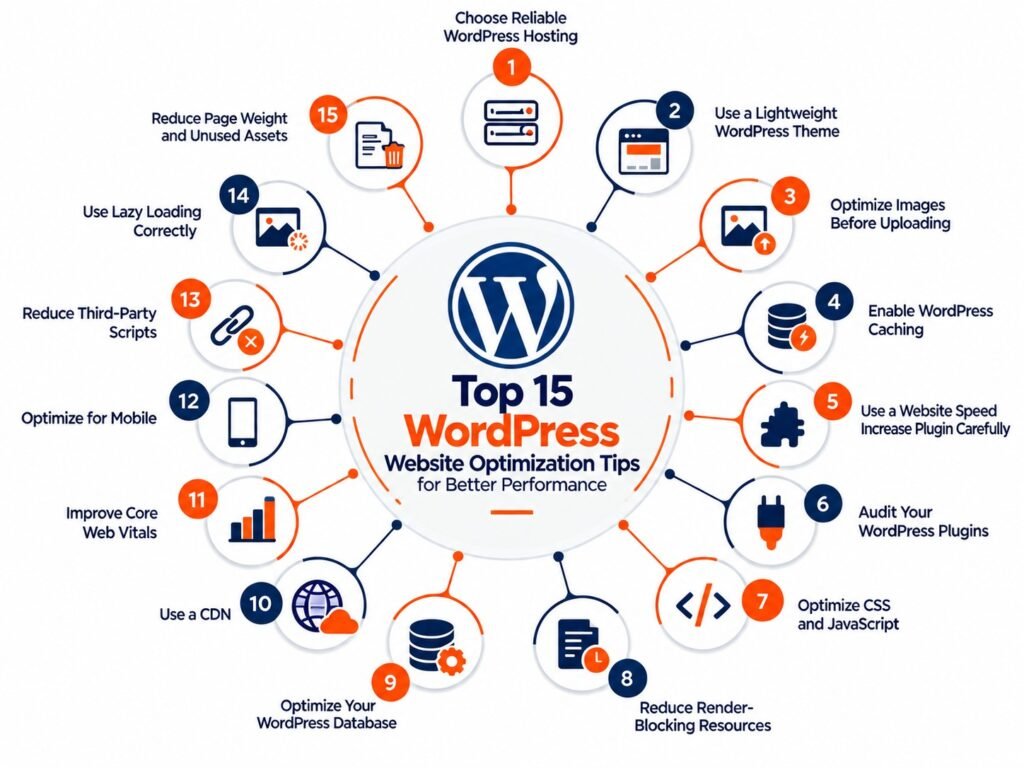
15 WordPress Website Optimization Tips
1. Choose Reliable WordPress Hosting
Your websites speed can be greatly affected by the hosting environment you choose. Shared hosting might work fine for websites but if your website gets a lot of traffic or has more complex features it might need more powerful resources.
Check the server response time the resources the PHP version, the storage space and the caching options that your hosting provider offers.
2. Use a Lightweight WordPress Theme
A attractive theme can still hold extra scripts, styles, animations and features.
Pick a theme that gives the functionality you truly need. A lightweight theme, with code can cut the work the browser must do.
3. Optimize Images Before Uploading
Large images are one of the reasons WordPress websites become slow. Resize images to the dimensions that are actually required compress images and use formats such, as WebP where appropriate. Also make sure images have dimensions so the browser can reserve space correctly. Image optimization can reduce file size, bandwidth usage and loading time.
4. Enable WordPress Caching
Caching helps serve content faster by storing it so you don’t need to rebuild the page every time someone visits.
You can use page caching, browser caching, object caching or server-level caching. Which one you pick depends on your hosting setup.
WordPress documentation says caching is one of the ways to boost performance.
5. Use a WordPress Website Speed Increase Plugin Carefully
A WordPress website speed increase plugin can simplify several optimization tasks, including caching, CSS and JavaScript optimization, lazy loading, and other performance settings.
One popular option is WP Rocket. Its page caching feature stores pages as static files, reducing some PHP processing and database requests.
However, installing a plugin does not automatically solve every performance problem. Test your website before and after enabling optimization features.
6. Audit Your WordPress Plugins
Although plugins offer useful features, those that are unnecessary or perform poorly can add scripts, styles, database queries, or external requests.
Switch off and get rid of any plugins that you don’t need any more; in the case of important plugins, verify if they load resources on the whole website or only in the areas where they are required.
It is just as important to remember that having more plugins doesn’t automatically result in a slow website; the code of the plugins and the way they affect your pages is what matters.
7. Optimize CSS and JavaScript
Minifying CSS and JavaScript can reduce file sizes, while removing unused code can reduce unnecessary browser work.
You can also defer or delay non-critical JavaScript. However, do not blindly apply every optimization setting because some scripts are required for menus, forms, sliders, or other website functions.
8. Reduce Render-Blocking Resources
Some CSS and JavaScript resources can delay the browser from displaying important content.
Review your PageSpeed Insights recommendations and determine which files are blocking rendering. Deferring non-critical JavaScript and optimizing critical CSS can help, but test the website after making changes to prevent functionality or layout problems.
9. Optimize Your WordPress Database
To optimize your WordPress database, review unnecessary revisions, spam comments, trashed content, temporary data, and unused plugin data.
Database cleanup should be performed carefully, and a backup should be taken before making significant changes. Also review autoloaded options if your site has a large amount of stored data.
10. Use a CDN
A Content Delivery Network (CDN) can distribute static resources such as images, CSS, and JavaScript through servers located in different regions.
This can be particularly useful when your visitors are geographically spread out.
11. Improve Core Web Vitals
Your optimization process should include Core Web Vitals.
Focus on:
- LCP: how quickly the main content becomes visible.
- INP: how quickly the page responds to user interactions.
- CLS: whether elements unexpectedly move while the page loads.
Large images, heavy JavaScript, slow servers, fonts, and dynamically loaded content can all contribute to performance problems.
12. Optimize WordPress for Mobile
A website that works well on desktop may still feel slow on mobile.
Use layouts, images sized properly simple navigation, readable fonts and limited animations.
Test key pages on mobile devices and, with performance tools.
13. Reduce Third-Party Scripts
Analytics, chat tools, social widgets, videos, maps, advertising scripts, and other external resources can increase the number of requests and browser processing.
Review whether each third-party script is necessary and whether it needs to load immediately. Third-party resources can affect the critical rendering path and performance.
14. Use Lazy Loading Correctly
and iframes that appear further down the page. For example, you might want to defer loading an embedded video until the user scrolls to it, to avoid the extra page weight. Lazy loading is good for images, videos,
But don’t automatically lazy-load important assets in the above-the-fold portion of the page, particularly those contributing to your LCP.
15. Reduce Page Weight and Unused Assets
Finally, review the overall weight of your pages.
Remove unnecessary fonts, large videos, unused CSS, unnecessary JavaScript, excessive animations, and widgets that provide little value.
If a plugin is only required on one page, check whether its assets can avoid loading across the entire website.
How to Optimize a WordPress Website on GoDaddy
If you want to make a WordPress website, on GoDaddy start by looking at your hosting resources and how fast the server responds. Then check caching the size of images, plugins how the database works and how quickly the site loads on phones.
Use PageSpeed Insights before and after you make changes. The specific ways to optimize can be different based on your GoDaddy hosting plan so don’t set any settings without seeing how your hosting setup is set up.
Free WordPress Website Optimization Tips
- You can start with free WordPress website optimization tips.
- Compress images before uploading them.
- Remove plugins and themes.
- Test pages, with PageSpeed Insights.
- Reduce fonts and animations.
- Keep WordPress and plugins updated.
- Clean unnecessary database content.
- Review third-party scripts.
- Test your website on devices.
Final WordPress Optimization Checklist
Before you finish your work on optimizing make sure you have looked closely at these items:
Hosting → Theme → Images → Plugins → Caching → CSS/JS → Database → CDN → Mobile Performance → Core Web Vitals → Third-Party Scripts → PageSpeed Insights
Making your WordPress website faster is a task. Your main goal should be to create pages that load quickly work reliably and are easy to use and navigate. After you complete one round of improvements check the pages again. See how the performance looks now and figure out what else can be done to make it better.
Frequently Asked Questions About WordPress Website Optimization
What is WordPress website optimization?
WordPress website optimization is the process of improving a WordPress website’s speed, performance, responsiveness, and overall user experience. It can include image optimization, caching, plugin management, database cleanup, CSS and JavaScript optimization, mobile optimization, and Core Web Vitals improvements.
How can I optimize my WordPress website for better speed?
Start by testing your website with PageSpeed Insights to identify performance issues. Then optimize large images, enable caching, review plugins, reduce unnecessary CSS and JavaScript, optimize your database, and improve mobile performance. Test the website again after making changes.
What is the best WordPress website speed increase plugin?
There is no single plugin that is best for every WordPress website. Performance plugins offer different features depending on your hosting, theme, plugins, and website setup. WP Rocket is one option that provides caching and several optimization features, but it should be configured and tested according to the needs of your website.
Is WP Rocket enough to optimize a WordPress website?
WP Rocket can help with caching and several performance optimizations, but it cannot fix every cause of a slow website. Hosting, large images, heavy themes, database issues, third-party scripts, and poorly performing plugins may still need separate attention.
How can I improve my PageSpeed Insights score?
First, identify the specific recommendations shown by PageSpeed Insights instead of trying to fix everything at once. Common improvements include optimizing images, reducing unused CSS and JavaScript, improving server response time, using caching, reducing third-party scripts, and improving Core Web Vitals.
How do I optimize my WordPress database?
You can optimize your WordPress database by reviewing unnecessary post revisions, spam comments, trashed content, temporary data, and unused plugin data. Always create a backup before performing significant database cleanup, especially when using database optimization tools.
How do I optimize a WordPress website on GoDaddy?
To optimize WordPress on GoDaddy, check your hosting resources and server response time first. Then review caching, image sizes, plugins, database performance, and mobile loading. The available hosting and performance features can differ between GoDaddy plans, so optimization settings should be based on your specific setup.